
How to place your first trade
From the login box to a closed position, every screen you will actually see. If you have an account but have never pressed Buy, start here and work down the page.
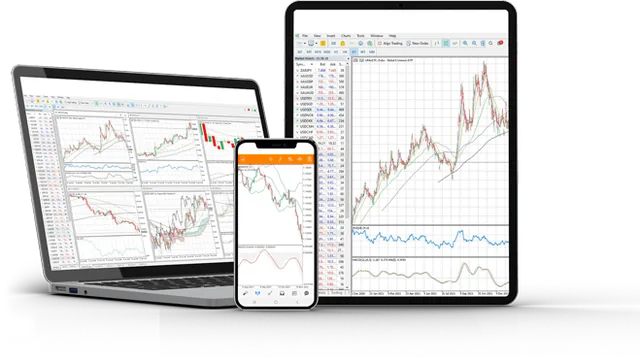
Both platforms
Live chart, on the phone you already have


FSA-licensed broker · Licence SD133
Watch it first, then follow along
What you need before you start
Three things, and you already have all of them if your account is open: the platform installed, your login details, and money in the account. If any of those is missing, the steps below will stop at the login box.
Your login details arrived by email the moment your account was created. They are a login number (a 7-digit number, not your email address), a password, and a server name. Keep that email; you will need it every time you install the platform on a new device.
Step 1 — Install the platform
MetaTrader comes in two versions and we run both. MetaTrader 5 is the newer one and is what we recommend unless you have a specific reason to use MetaTrader 4. Whichever you pick, your account only works on that platform — an MT5 account cannot log in to MT4.
Install it on whatever you actually use. Most of our clients trade from a phone; the Android and iPhone apps have the same order window as the desktop version, just laid out for a smaller screen.
- Windows — download the installer from our download page and run it.
- Android and iPhone — install MetaTrader 5 (or 4) from the app store, then search for TNFX when it asks for a broker.
- Mac or a work computer you cannot install on — the web terminal runs in the browser with nothing to install.
Step 2 — Log in
This is where most people get stuck, and it is almost always the same mistake: the server. The platform will accept your login and password and still refuse to connect if the server is wrong, and the error it shows — Invalid account — does not tell you that.
On MetaTrader 5 the server is TNFX-Live. On MetaTrader 4 it is TNFX-Live4. Type it into the search box in the server field if it is not already in the list.


Step 3 — Pick what you want to trade
Market Watch is the price list down the left-hand side. Everything you are allowed to trade appears there, and each line shows two prices.
Bid is the price you sell at. Ask is the price you buy at. Ask is always slightly higher, and that gap is the spread — the cost of opening the trade, already included in the price. It is why a new trade shows a small loss the instant it opens. That is normal and it is not a fee taken from you afterwards.

Step 4 — Open the order window
Press F9. That is the whole trick, and it works from anywhere in the platform. If you prefer the mouse, right-click the symbol in Market Watch and choose New Order, or right-click anywhere on a chart and choose Trading → New Order.
On the phone app, tap the symbol in the Quotes list and then Trade.
The window that opens is the one you will use for every trade you ever place. It is worth two minutes of reading rather than guessing.

Buy or sell — which button
Buy if you think the price is going up. You profit from the rise. Sell if you think it is going down — you profit from the fall, and you do not need to own anything first. Being able to profit from a falling market is the part that confuses people coming from buying gold or shares.
The two buttons show the two live prices. Buy fills at the ask, sell fills at the bid. Market Execution means the order goes through immediately at whatever the price is right now — which is what you want for your first trade.
Volume — the number that decides everything
Volume is measured in lots and it is the single most important field in the window. It decides how much every price move is worth to you, and it is where beginners lose accounts.
The smallest trade is 0.01 lots. On gold, 0.01 lots is one ounce, so every dollar gold moves is roughly one dollar to you. Gold routinely moves 20 to 40 dollars in a day. On EUR/USD, 0.01 lots makes one pip worth about ten cents.
Start at 0.01 and stay there until you have placed twenty trades. Nobody has ever regretted starting too small.
| Volume | Gold (XAUUSD) | EUR/USD |
|---|---|---|
| 0.01 lots | $1 per $1 move | $0.10 per pip |
| 0.10 lots | $10 per $1 move | $1 per pip |
| 1.00 lot | $100 per $1 move | $10 per pip |
Step 5 — Stop loss and take profit
These two fields are the difference between trading and gambling, and they are the reason most first accounts survive or do not.
Stop loss is the price at which the platform closes the trade automatically, at a loss, so a bad trade stops getting worse while you are asleep or on the bus. Take profit is the price at which it closes automatically in profit, so you actually collect the gain instead of watching it come back.
Both are just prices. If gold is at 4,348 and you buy, a stop loss at 4,342 means you have decided in advance that you are willing to lose six dollars per ounce on this idea and no more.


Step 6 — Watch it in the Trade tab
Once the order goes through, the position appears at the bottom of the terminal in the Trade tab. That row is your trade: the price you got in at, your stop loss, your take profit, the current price, and the profit or loss in dollars, updating every tick.
The number on the right will be negative the moment the trade opens, by roughly the spread. That is not a mistake and it is not a charge — it is the gap between the buy and sell price that you have to cover before the trade is even.


Step 7 — Close the trade
There are three ways a trade ends, and two of them need nothing from you.
Your take profit closes it in profit. Your stop loss closes it at the loss you accepted in advance. Or you close it by hand: right-click the position in the Trade tab and choose Close Position, or click the small × on the right of the row. On the phone, tap the position and choose Close.
You can also close part of it — enter a smaller volume than the position and the rest stays open. That is how you take some profit off the table without giving up the whole idea.
Buy limit, sell limit, buy stop, sell stop
Everything so far has been a market order — trade now, at the current price. A pending order is the other kind: you tell the platform the price you want, and it waits for you. It is how you trade a level you are watching without sitting in front of the screen.
There are four of them and the names are confusing until you see them on a chart. Then they are obvious. The whole difference is where the price sits relative to now:
| Order | Placed | Use it when |
|---|---|---|
| Buy Limit | Below the current price | You want to buy, but only if it gets cheaper first. |
| Sell Limit | Above the current price | You want to sell, but only at a better, higher price. |
| Buy Stop | Above the current price | You only want to buy if it breaks upward and proves the move. |
| Sell Stop | Below the current price | You only want to sell if it breaks downward and proves the move. |

Placing one
In the same order window, change Type from Market Execution to Pending Order. A second Type field appears with the four choices in it, plus a Price field for the level you want.
Fill in the price, set your stop loss and take profit exactly as before, and press Place. The order sits on the chart as a line and does nothing until the price reaches it. Until then it costs you nothing and uses none of your margin.


What goes wrong on a first account
Almost all of it is one of five things, and all five are avoidable.
The most common and the most expensive. 1.00 lot on a small account is not an aggressive trade, it is a coin flip on whether the account survives the week. Start at 0.01.
A trade without a stop loss has no worst case. People hold a losing position because closing it makes the loss real, and that is exactly how a small loss becomes the whole balance.
Spreads widen and prices jump. Look at the economic calendar before you place anything, and if something major lands in the next ten minutes, wait.
Doubling down feels like conviction. It is the single fastest way to turn a recoverable loss into a margin call.
A demo account is free, unlimited, and behaves identically. Twenty trades on demo will teach you more about the order window than any article, including this one.
Common questions
What is the TNFX server name in MetaTrader?
TNFX-Live for MetaTrader 5 and TNFX-Live4 for MetaTrader 4. If you type the wrong one the login fails even though your number and password are correct.
Why does my trade show a loss immediately?
Because you buy at the ask and sell at the bid, and there is a small gap between them called the spread. The trade has to cover that gap before it is even. It is included in the price, not charged separately.
What is the smallest trade I can place?
0.01 lots. On gold that is about one dollar of profit or loss for every dollar gold moves, which is a sensible size to learn on.
What is the difference between a buy limit and a buy stop?
A buy limit sits below the current price and buys if the market gets cheaper. A buy stop sits above it and buys only if the market breaks upward. Same direction, opposite reasoning.
Do I have to set a stop loss?
The platform will let you trade without one. You should not. A stop loss is the only thing that decides your worst case before the market decides it for you.
Can I change the stop loss after the trade is open?
Yes. Right-click the position in the Trade tab, choose Modify, and type the new prices. Move it to protect profit, not to give a losing trade more room.
Can I practise without real money?
Yes — open a demo account. Same platform, same live prices, same order window, no risk. Every step on this page works identically on it.
My login worked yesterday and fails today. What changed?
Usually the platform updated and reset the server field, or you are on a different device. Re-select TNFX-Live (or TNFX-Live4 on MT4) and try again. If it still fails, message support — we answer 24 hours a day, six days a week.